
Setting a signing order

A signing order (also known as a routing order) allows you to specify the order in which the document in completed.  By applying a signing order, you can choose who takes action on the document and in what order.

Example: Offer Letter
An offer letter to a new employee needs to go to an executive to approve.  Once approved, a director needs to approve, and then the employee's direct manager needs to approve. Finally, the offer letter can route to the employee for signature.

When a signing order is applied, each recipient must take the assigned action in order for the document to move to the next recipient.  When no signing order is applied, all recipients are sent the document at the same time and can take action in any order.

To enable signing order, toggle on signing order from the Manage recipients dialog:
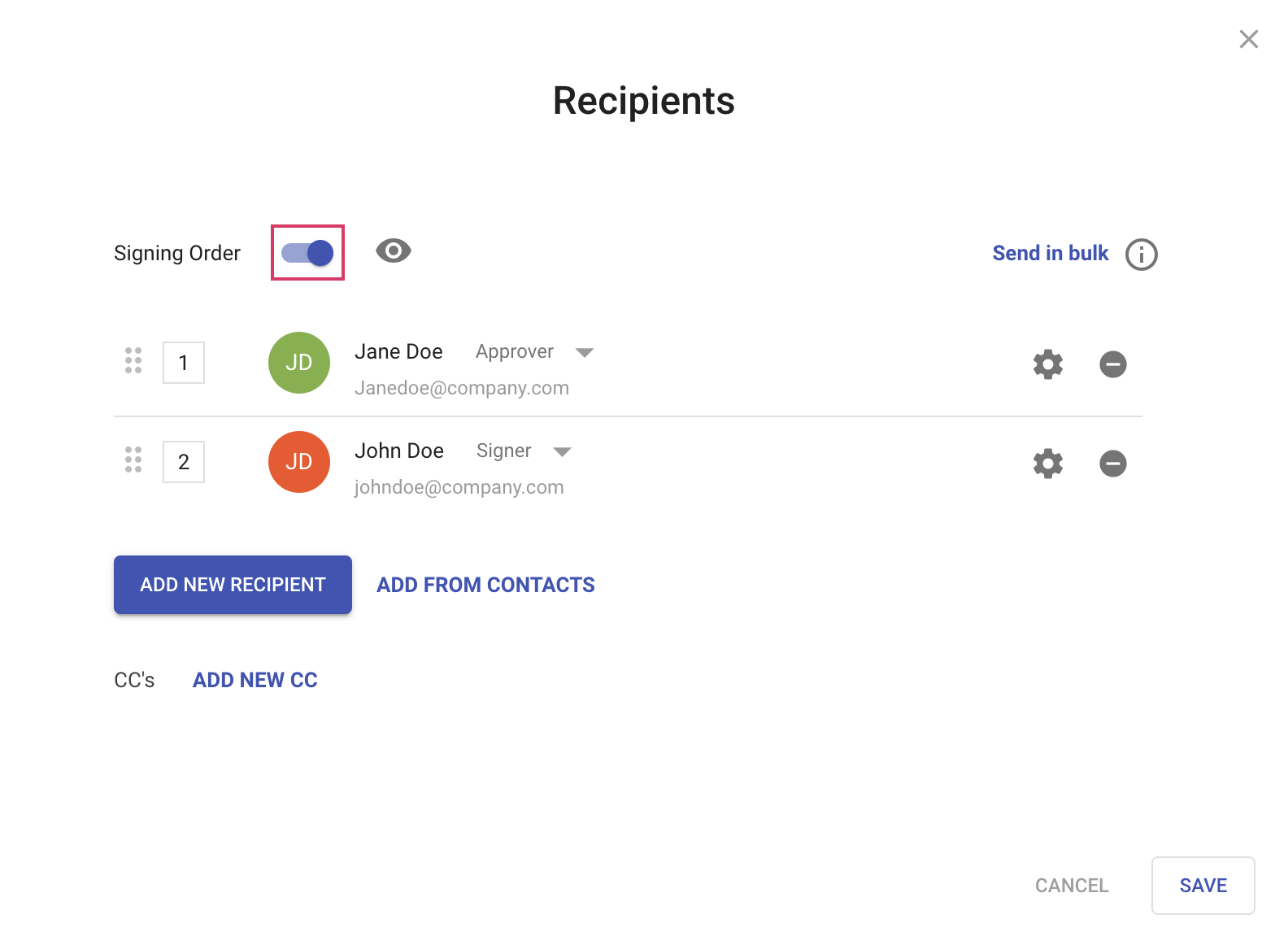
Once enabled, you can:

  • Drag and drop the recipients to the order you want them in
  • Modify the numerical values to specify the order
  • Click the eye icon next to the signing order toggle to see a visual of how the document will be routed


Tips:

Parallel signing: You can have two or more recipients in the same order.  For example, you could have two recipients sign at the same time by changing the numeric value to the same number.  That way, both of them would receive the document at the same time and would both need to take action before it can move on to the next recipient.

Same Recipient, Multiple Actions: You can also have the document route to the same recipient multiple times.  Say, for example, you want John to approve the document as the first recipient.  Then, after others have signed, you want John to also sign the document.  In this case, you’d include John twice, once as an approver and then as a signer, later in the signing order.