Add Contact to a Signing Group
Any contact in your contact list can be added to a signing group. Once a contact is added to a signing group, they can participate in the signing process as a member of that group. A single contact can be included in multiple signing groups.
A contact can be added to a group at any time. However, the newly added group member will not be reflected on any in-flight documents. The change will only appear on templates and future documents.
A contact can be added to a group in multiple ways, which are done from the Contacts area:
- Single selected a recipient to add to a group
- Multi-select one or more recipients to add to a group
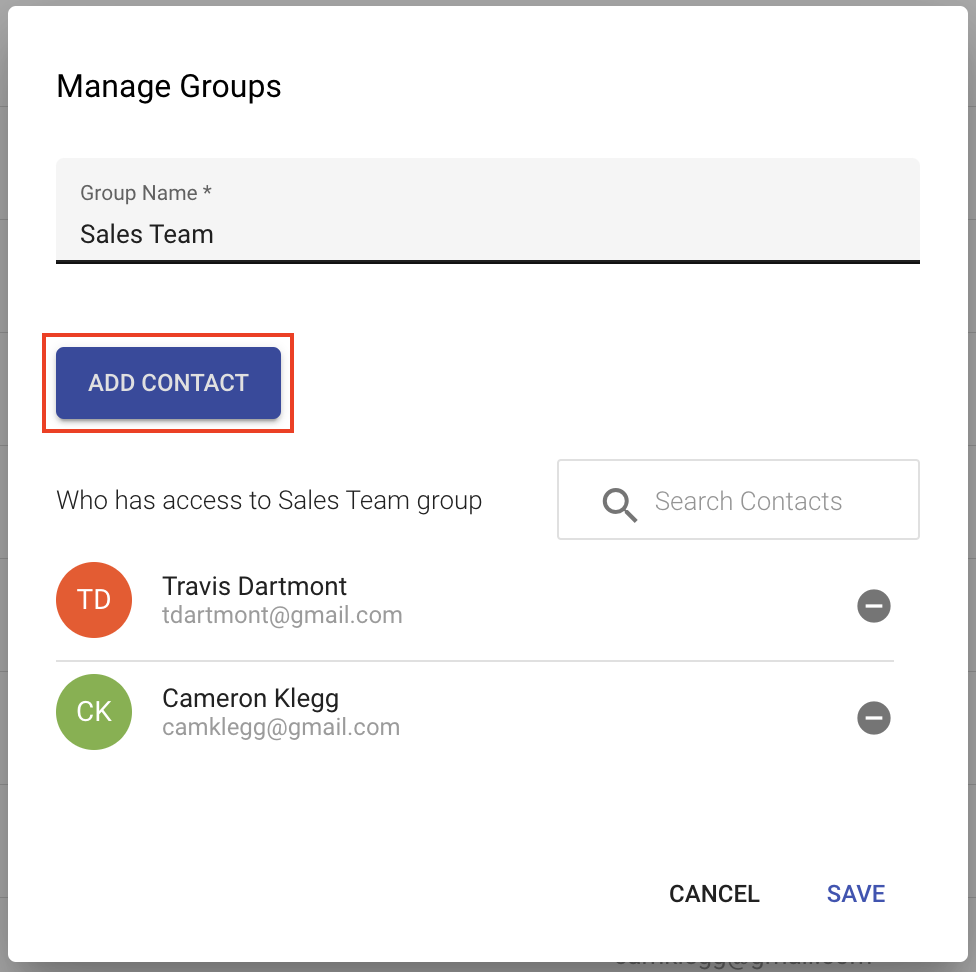
- Add a contact when managing a existing group
Single select a recipient
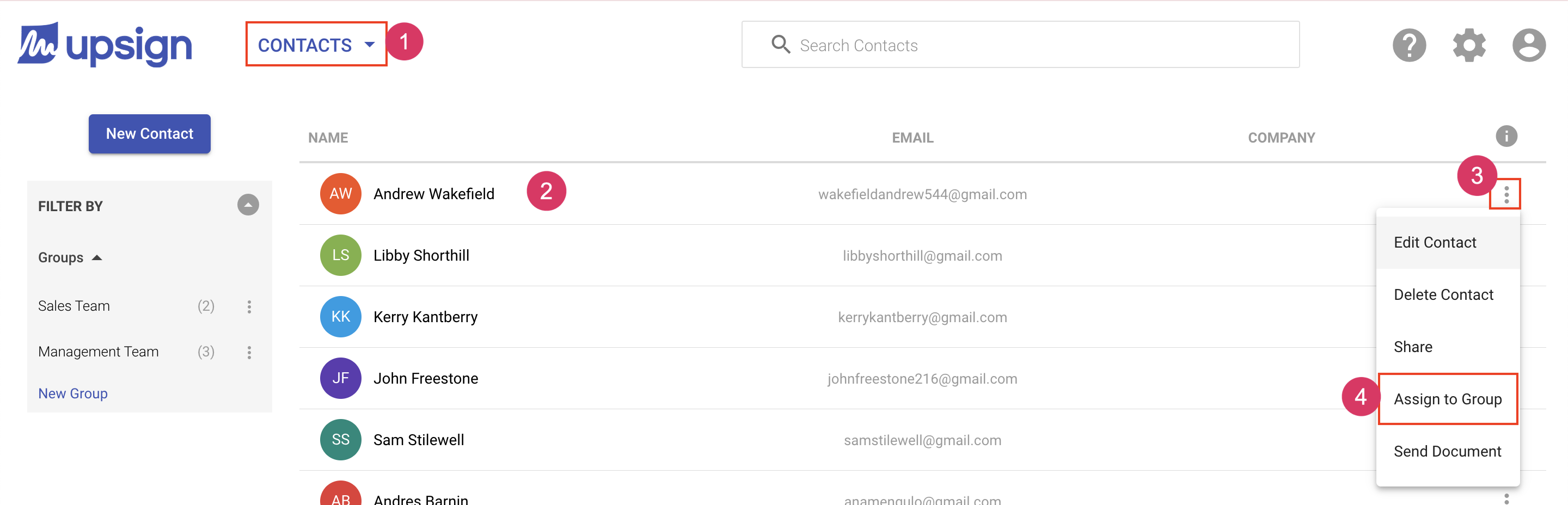
- Navigate to the Contacts area
- Locate the contact you want to add to a group
- Click More Actions on the contact record
- Choose Assign to Group
Multi-select one or more recipients
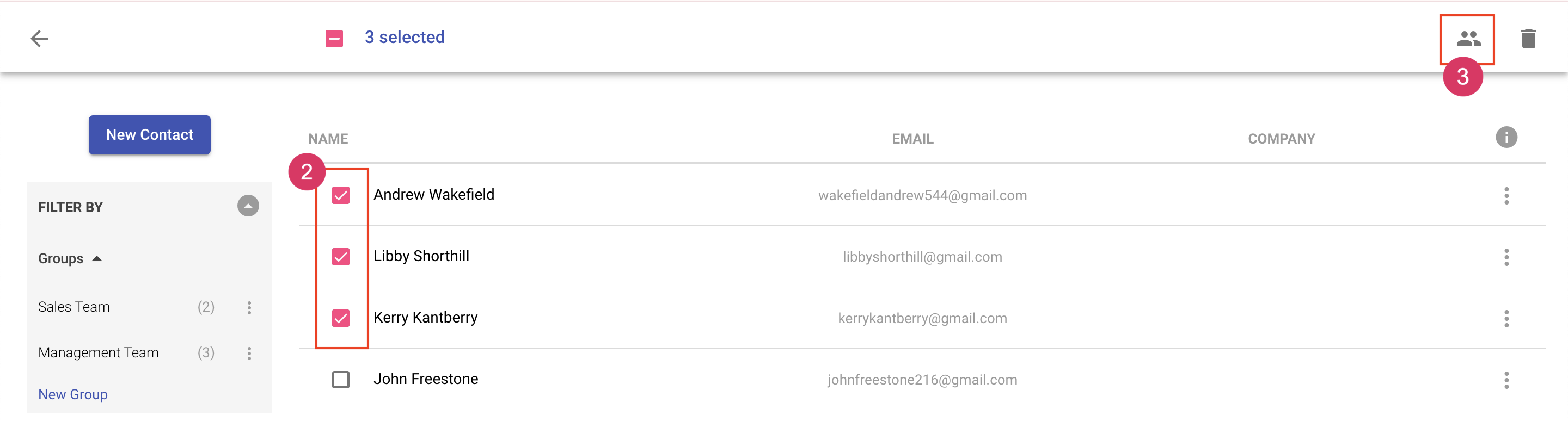
- Navigate to the Contacts area. Locate the contact you want to add to a group.
- Select the recipient(s) by clicking the badge next to their name. This will change the badges to checkboxes.
- Choose Add to Group icon in top bar.
Add a contact when managing a existing group
- Navigate to the Contacts area
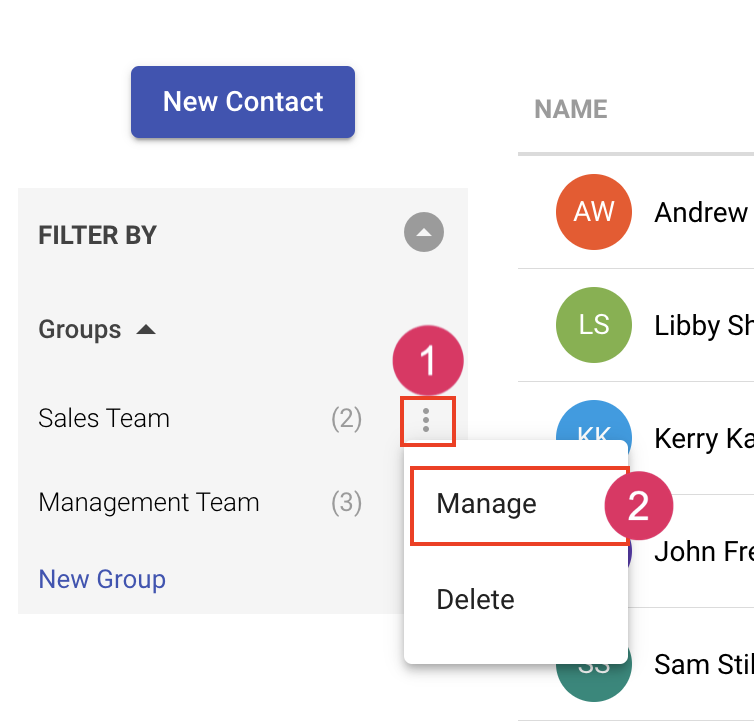
- Click More Actions on the group to which you'd like to add a contact
- Click Manage Group