
Add a signing group

A signing group is made up of one or more recipients.  When using a signing group, all recipients in the group are treated as a single recipient.  When the document is sent, any one of the group members can take the actions on behalf of the entire group.

Example: Manager Approval

An HR team is sending out a retention bonus offer to an employee. In order to accept the retention bonus, the employee must sign the letter. Before the recipient can sign, you need someone in the management chain to approve it, which might include the employee's direct manager, a director and an HR manager. Any one of which could approve it. You configure the document to route first to a signing group called, "Management team" and then to the employee for signature. Upon sending, all three managers receive the notification to approve. When any one of them approves the document, the approval is complete and the offer is sent to the employee for signature.

To use a signing group:

  1. From the Add Recipients dialog, choose Add From Contacts
  2. In the contacts dropdown, search for or scroll to locate the signing group
  3. Choose the Signing Group from your list
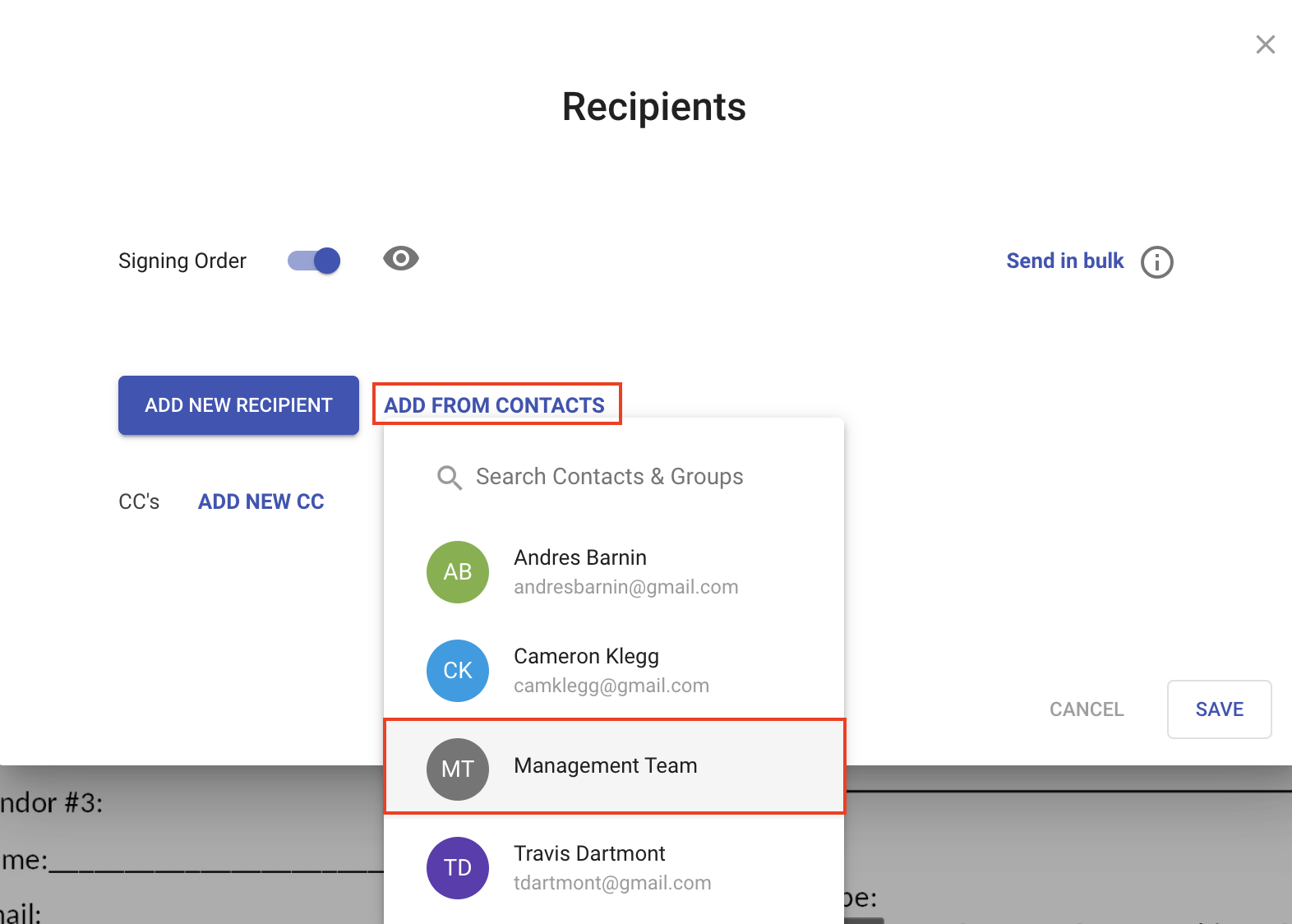
The group will be added just like any other recipient.

Note: In order for a signing group to show up in the list of contacts, you must first create that signing group. See Create Signing Group to learn more.